You block two hours for “deep work” on your calendar. Fifteen minutes in, a Slack notification slides across the screen. You glance at it — just to see if it’s urgent — and by the time you look back at the document, the thread you were following in your head is gone. Research on task resumption puts the real cost of that glance at roughly 23 minutes to fully return to the depth of focus you had before the interruption, and most remote workers get interrupted again well before that clock runs out.
This is part of our Time Management for Remote Workers series. The tools in that guide help you find and protect time — this playbook is the behavior layer underneath them: the actual habits, norms, and calendar mechanics that turn a block of “free” time into real, undisturbed deep work.
The Framework
Cal Newport, who coined the term in his book Deep Work, defines it as “the ability to focus without distraction on a cognitively demanding task.” The opposite — shallow work — is the email, the quick Slack reply, the status update — necessary, but it doesn’t move anything important forward, and it’s infinitely expandable to fill however much time you give it. For a remote worker, the danger isn’t that deep work is impossible; it’s that shallow work is always one notification away and always feels more urgent in the moment. Protecting focus time isn’t a willpower problem — it’s a systems problem, and it breaks into five parts:
- Audit — know where your attention is actually going before you try to fix it
- Schedule — put deep work on the calendar as a real time block, not a hope
- Eliminate — remove the notifications that break focus at the source, not by ignoring willpower
- Signal — give your team a norm for when you’re heads-down, so protecting your time doesn’t look like going dark
- Automate — use your calendar and scheduling tools to defend the block without you having to fight for it every day
Step 1: Audit Where Your Focus Actually Goes
Before you protect time, find out how much of it is already being lost — and to what. For three working days, keep a simple running note (a text file or a note-taking app is fine) every time you get pulled out of a task: what interrupted you, and whether it came from outside (a Slack ping, a call) or from yourself (checking email “just in case,” opening a new tab out of habit). Microsoft’s Work Trend Index has found that the average knowledge worker is interrupted by an email, meeting, or notification roughly every two minutes across the workday, and separate research on communication-tool usage shows workers checking Slack or email every six minutes on average — far short of the 60-90 uninterrupted minutes deep work actually needs. Your own three-day log will almost always surprise you, because self-interruptions (checking a tab you didn’t need to) usually outnumber the notifications you’d blame first.
You don’t need a fancy tool for this — a plain log is enough to see the pattern. If you want it automated, a time-tracking tool like RescueTime (covered in our time management guide) will log app and website switches for you and show the same picture without the manual notes.
Step 2: Build a Daily Deep Work Block — and Put It on the Calendar as a Real Meeting

Once you know where the leaks are, block the fix directly into your calendar using time blocking: pick one recurring window — most people find late morning or the first 90 minutes of the day works best, before the inbox has had a chance to set the day’s agenda — and create a recurring calendar event for it, titled plainly (“Deep Work — do not book”) rather than left as blank “free” time. A block that isn’t a real calendar event is just a plan; the moment it’s not on the calendar, anyone (including you) can book over it. Aim for 60-120 minutes: research on flow states (Csikszentmihalyi) and the deep work literature both point to roughly 90 minutes as the sweet spot — long enough to get past the initial ramp-up cost of switching into focused thinking, short enough to sustain real concentration without diminishing returns.
- Same time, every day — a consistent slot builds the habit faster than a different time each day and makes it easier for teammates to learn to route around it.
- Mark it “Busy,” not “Free” — the calendar setting that actually blocks other people (and booking tools) from scheduling over it.
- One task, decided in advance — pick what you’re working on the night before or first thing, so the block doesn’t get eaten by deciding what to do with it.
- Protect it like an external meeting — if you wouldn’t casually cancel a call with a client, don’t casually cancel your own deep work block for an “urgent” Slack thread that can wait 90 minutes.
Step 3: Kill Notifications at the Root, Not With Willpower
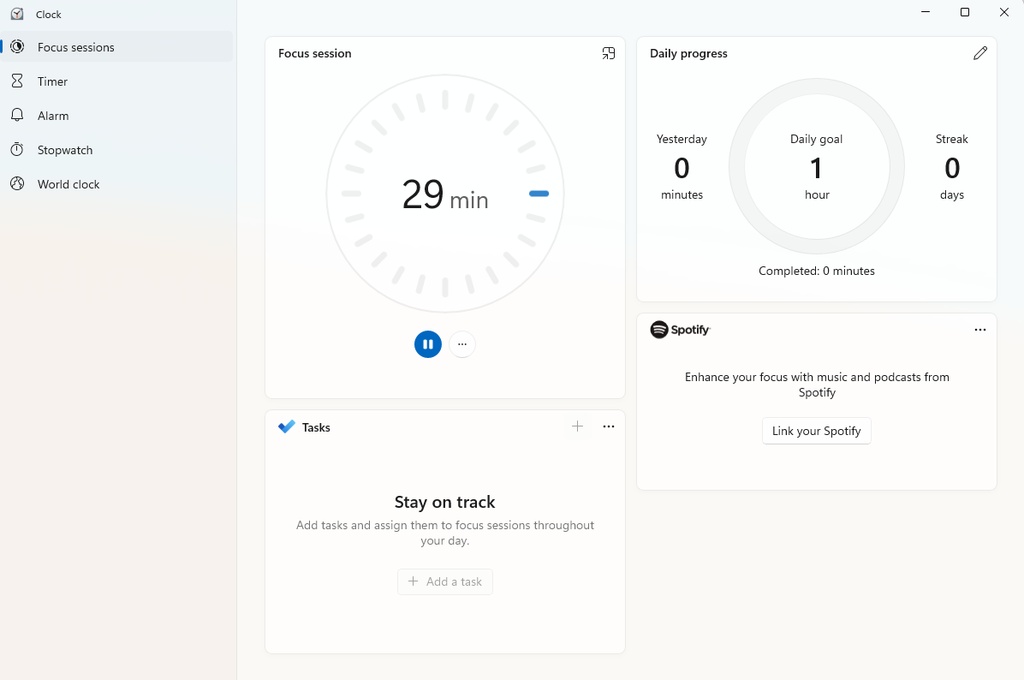
Telling yourself “I just won’t check Slack” during the block doesn’t work as well as removing the option to check it. Willpower is a limited resource that gets weaker as the day goes on; a system that removes the temptation entirely doesn’t run out.
- Turn on Do Not Disturb / Focus mode on your phone and laptop for the exact duration of the block — both macOS and Windows have this built in for free, and it can be scheduled to turn on automatically at the same time every day.
- Close Slack and email entirely rather than minimizing them — a minimized tab still delivers a badge count and a sound that pulls at your attention even if you don’t open it.
- Turn off badge counts and banners for chat and email apps in your phone and OS notification settings — the unread number is often more distracting than the message itself.
- Use a site/app blocker during the block if self-interruption (checking news, social media, or a second inbox) is your bigger leak rather than external pings — free options like Cold Turkey (Windows) or Focus (macOS, free tier) block specific sites and apps for a set window.
Step 4: Give Your Team a Signal They’ll Actually Respect
The fastest way a deep work block collapses on a remote team isn’t a lack of discipline — it’s the fear of looking unresponsive. If going quiet for 90 minutes reads as “ignoring the team,” people will break their own blocks to avoid that impression. Fix this with an explicit, team-wide norm rather than a private habit:
- Set a Slack status (“🎯 Deep work until 11am, back after”) so silence has a visible, expected reason instead of looking like absence.
- Publish your deep work block on a shared calendar so teammates can see it before they try to schedule over it, not just experience it as a declined invite.
- Agree on what “urgent” actually means as a team — a real production outage justifies breaking the block; a question that can wait 90 minutes doesn’t. Our async-first meetings playbook covers writing this down as a one-page charter so it’s a team agreement, not an unwritten rule you’re the only one following.
- Model it as a manager or team lead — if the first person to break their own focus block for a non-urgent ping is the manager, no one else will believe the norm is real.
Step 5: Automate the Defense So You’re Not Fighting for It Every Day

Manually re-blocking your calendar every morning is exactly the kind of small daily friction that causes a good system to quietly die after two weeks. This is where a smart-scheduling layer earns its place on top of the habits above:
- Recurring calendar holds — the free, zero-setup version: a recurring “Busy” event in Google Calendar or Outlook that repeats indefinitely, so you never have to re-create it.
- Smart-scheduling tools like Reclaim.ai and Motion go a step further by treating your deep work block as a flexible, defended habit rather than a static event — they’ll automatically move it around real meetings that come up instead of just getting double-booked over. We’re publishing full reviews of both later in this series, alongside how they stack up against Calendly for this specific use case.
- Booking-page availability rules — if you use Calendly or Google Calendar’s Appointment Schedules (covered in our calendar automation guide (coming soon)), mark your deep work hours as outside your bookable hours specifically, not just busy on your general calendar, so no one can book straight over it via a public link.
The order matters: automation defends a habit that already exists. Turning on a scheduling tool before you’ve actually built the habit in Steps 1-4 just gives you a beautifully protected block that you still skip yourself.
Common Mistakes to Avoid
- Blocking time without deciding what goes in it. An empty “Focus Time” block on the calendar becomes decision-making time, which eats into the block itself. Decide the single task the night before.
- Scheduling the block at the wrong time for your actual energy. Forcing deep work into a 3pm slot because it was the only calendar gap available rarely works as well as protecting your highest-energy hours, even if that means moving other things.
- Treating the first broken block as proof the system doesn’t work. One interruption doesn’t invalidate the habit — the fix is closing the tab and going back in, not abandoning the block for the week.
- Announcing the norm once and never repeating it. A Slack status that changes daily is easy to miss; new team members especially need the norm restated, not just discovered.
- Stacking deep work blocks back-to-back without a break. Two 90-minute blocks with no gap tends to produce one mediocre 3-hour block instead of two genuinely sharp ones — build in a real break between them.
FAQ
How long should a deep work block actually be?
60-120 minutes is the range most of the research and practitioner guidance converges on — long enough to get past the mental ramp-up cost of switching into focus, short enough to sustain real concentration. Start at 60 minutes if you’re new to this and extend once the habit sticks; a 3-hour block you can’t actually sustain does less good than a 60-minute one you protect every single day.
What if my job genuinely requires being reachable most of the day?
Even roles with heavy reactive demands (support, account management) usually have a lower-traffic window — early morning before most requests come in, or a specific hour agreed with the team. The goal isn’t zero interruptions all day; it’s one protected, undisturbed window you can count on, even if it’s shorter than you’d like.
Do I need to buy a scheduling tool to make this work?
No — Steps 1-4 (audit, schedule, eliminate, signal) cost nothing and do most of the work on their own. A paid smart-scheduling tool like Reclaim.ai or Motion (both covered later in this series) is a convenience layer for people whose calendars are busy enough that manually re-blocking time daily has become its own chore, not a requirement to get started.
How do I know if this is actually working?
Repeat the three-day interruption log from Step 1 after two to three weeks of running the system. You’re looking for two things: fewer logged interruptions during the blocked window, and — just as telling — a task list showing real cognitively demanding work getting finished during that window instead of endlessly carried over.
The Bottom Line
Deep work doesn’t fail for lack of good intentions — it fails because shallow work is always one notification away and always feels more urgent in the moment. Protecting focus time is a systems problem: audit where your attention actually goes, put a real block on the calendar, remove the notifications at the source instead of relying on willpower, give your team a norm they’ll respect, and let automation defend the habit once it’s real. None of the five steps requires a paid tool to start — but once the habit is built, the smart-scheduling layer we cover next in this series (Reclaim.ai, Motion, and how they compare to Calendly) is what keeps it running without you having to fight for it every single day.