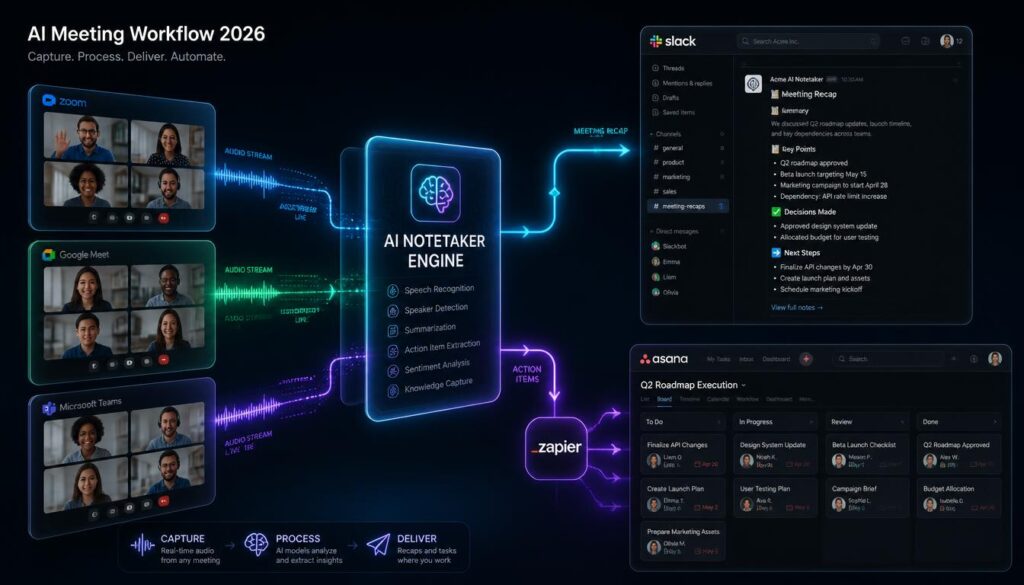
You finish a 45-minute call with three decisions, five action items, and one deadline — and then nobody writes any of it down. Two days later the work stalls because “I thought you were doing that.” Automating meeting notes with AI fixes the boring half of that problem, but the real win comes from automating the follow-ups: turning what was said into tasks, owners, and reminders without anyone typing a word.
This is a step-by-step guide to building that pipeline. It takes about 45 minutes to set up once, works on Zoom, Google Meet, and Microsoft Teams, and can be done entirely on free plans if you want to test it first.
What You’ll Build
- An AI notetaker that joins (or silently records) every call on your calendar
- A clean summary + action item list generated within a minute of hangup
- An automation that splits those action items into individual tasks in your project tool
- A recap posted to the right Slack channel so nobody has to ask “what did we decide?”
Time to set up: ~45 minutes · Cost: $0 to test, ~$10–20/user/month at full strength · Skill level: no code required
Step 1: Pick Your AI Notetaker
Everything downstream depends on this choice, because not every notetaker can push data out to other apps. The four tools most remote teams end up choosing between in 2026:
| Tool | Free plan | Paid entry price | Automation-friendly? | Best for |
|---|---|---|---|---|
| Fireflies.ai | 800 minutes total storage | ~$10/user/mo (annual) | Yes — native Zapier app, webhooks, GraphQL API | Teams that want automated follow-ups and searchable meeting history |
| Otter.ai | 300 minutes/month | ~$8.49/user/mo (annual) | Yes — Zapier, HubSpot/Salesforce on paid tiers | Live transcription and in-person capture |
| Fathom | Unlimited recordings, 5 AI summaries/mo | ~$15/user/mo (annual) | Partly — good exports, thinner automation surface | Solo consultants who just want great notes |
| Granola | Free forever, limited history, no integrations | ~$14/user/mo (Business) | Yes on paid — Notion, Slack, HubSpot, Zapier | Bot-free client calls where a visible bot feels rude |
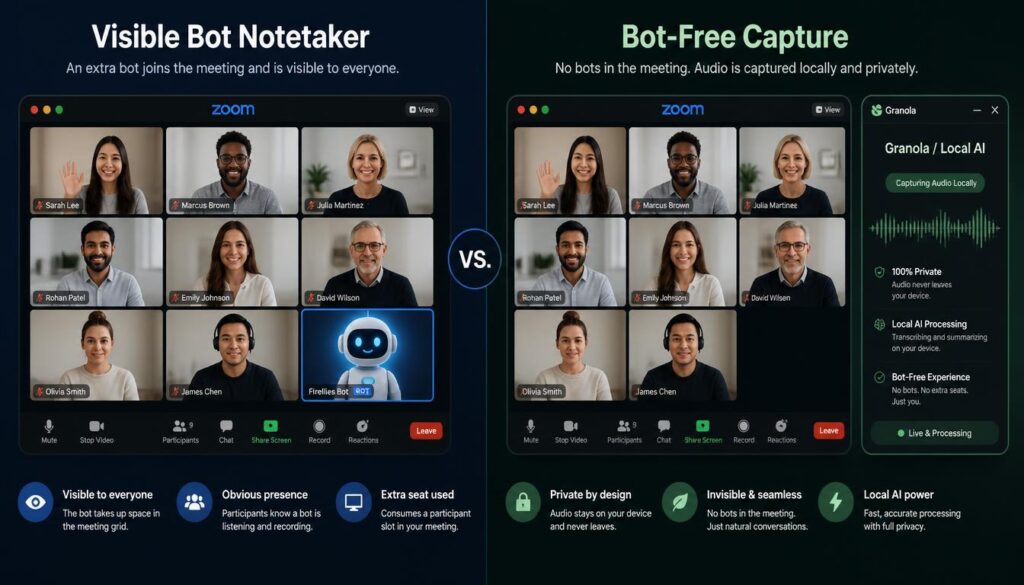
Our pick for this tutorial: Fireflies.ai. Not because it writes the prettiest summary — Fathom and Granola arguably do — but because it exposes action items as structured data to Zapier and webhooks, which is exactly what Step 3 needs. If you already pay for Zoom Pro, Google Workspace with an AI plan, or Microsoft 365 Copilot, check the native option first: Zoom AI Companion is included on Pro and Business plans, and Google Meet’s “Take notes for me” writes summaries straight into a Google Doc for AI Pro/Ultra and eligible Workspace accounts. Native tools are cheaper but harder to automate against.
Before you go further: tell your team, and check your local recording-consent rules. Most notetakers show a visible participant or an on-screen indicator; some offer bot-free capture. Announce it once in writing so no client is surprised.
Step 2: Connect It to Your Calendar (10 Minutes)
- Sign up and connect your calendar. Grant Google Calendar or Outlook access so the notetaker can see which meetings have a video link.
- Choose which meetings it joins. Don’t pick “all meetings” on day one. Start with internal team meetings and recurring client calls; leave 1:1s and interviews off until the team is comfortable.
- Set your summary template. Most tools let you choose or customise the output. Use three sections and nothing more: Decisions, Action items (owner + due date), Open questions. Long narrative recaps don’t get read.
- Add your vocabulary. Client names, product names, and acronyms go into the custom-vocabulary field. This is the single biggest accuracy upgrade available and takes five minutes.
- Run one test call. Two minutes, say a fake decision and two fake action items out loud with names attached, and check the output. If the owner names don’t come through, fix vocabulary before automating anything.
Step 3: Turn Action Items Into Real Tasks
This is the step almost everyone skips, and it’s where the hours actually come back. An action item sitting inside a transcript is not a task — it’s a note about a task. Here’s the automation, built in Zapier (Make works identically):
- Trigger: “New Meeting Transcription Completed” in the Fireflies Zapier app. (If you prefer webhooks, point Fireflies’ developer webhook at a Webhooks by Zapier “Catch Hook” — note that Webhooks by Zapier requires a paid Zapier plan.)
- Filter: only continue if the meeting title contains your project keyword, or if the action-items field is not empty. This stops you spamming your task board after every casual call.
- Format with AI: add an “AI by Zapier” or ChatGPT step and ask it to return the action items as a plain numbered list, one per line, each formatted as
Owner — task — due date. Ask explicitly for no preamble; that’s what makes the next step work. - Loop: add “Looping by Zapier” and split the text on line breaks. Without a loop, all five action items land as one giant task nobody can tick off — this is the most common failure point in the whole build.
- Action: create a task in ClickUp, Asana, Notion, Todoist, or Trello for each loop item. Map the owner to an assignee, the due date to the due-date field, and paste the meeting link into the description so context is one click away.
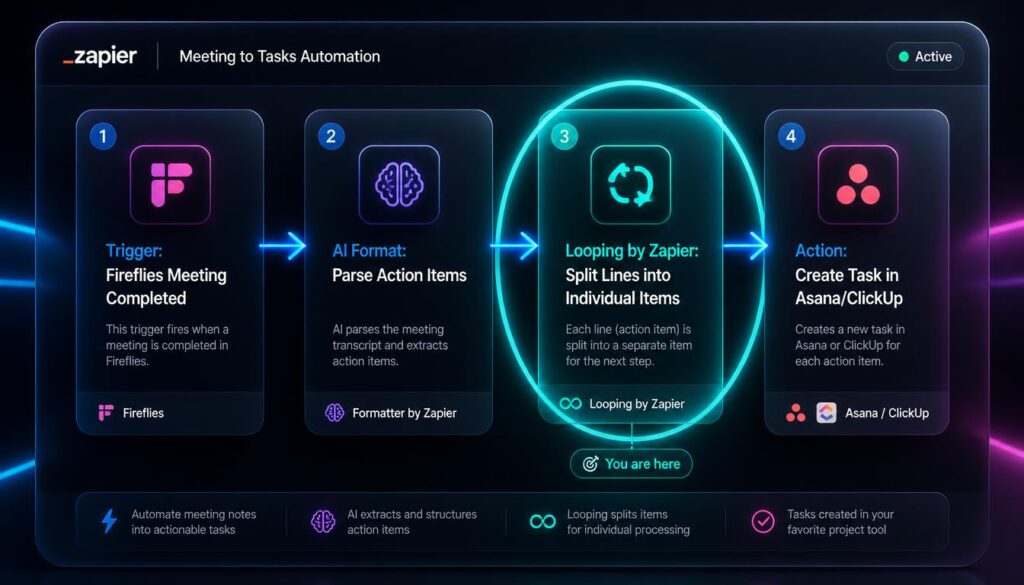
Test it with the fake action items from Step 2 before you let it touch a real board. Check the assignee mapping specifically — mismatched names are the reason automated tasks end up unowned.
Step 4: Automate the Recap Message
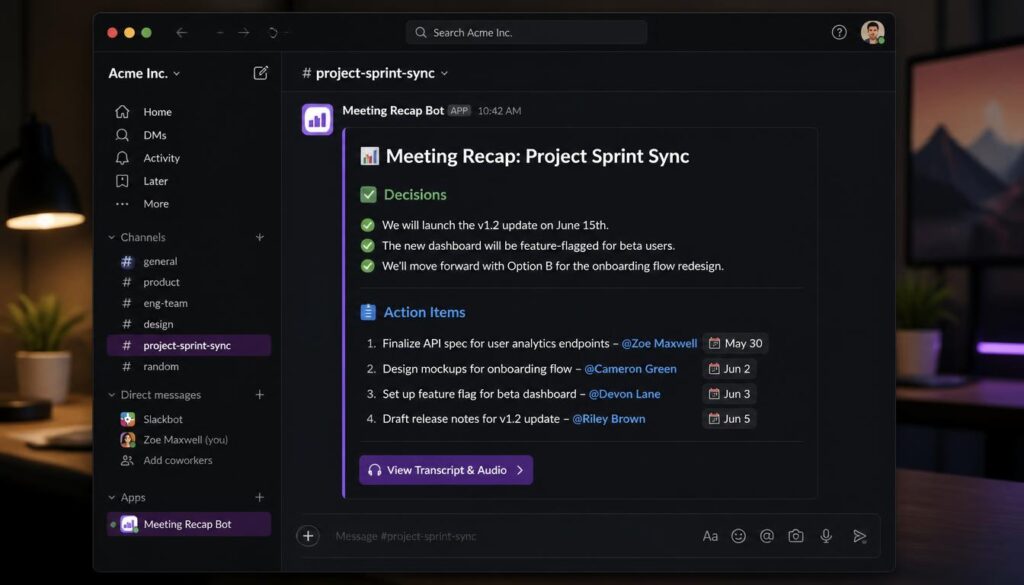
Add a second path to the same Zap (or a second Zap on the same trigger) that posts the summary where the work happens:
- Internal meetings → Slack channel message with the decisions, the task list, and a link to the transcript. Thread the detail; keep the top-level message to five lines.
- Client calls → a drafted (not auto-sent) follow-up email. Have the automation create a Gmail draft so a human reads it before the client does. Never let AI email a client unsupervised.
- Sales calls → append the summary to the CRM record so the next person to open the deal sees what was promised.
Step 5: Close the Loop Weekly
Automated capture creates a new failure mode: a task board full of AI-generated items nobody triages. Add a 10-minute Friday habit — or a scheduled automation that posts the week’s meeting-generated tasks that are still open — and either do them, reassign them, or delete them. A pipeline you don’t prune stops being trusted within a month.
Common Mistakes to Avoid
- Recording everything from day one. Storage caps on free plans burn fast, and trust burns faster. Expand scope after two weeks.
- Skipping the loop step. One combined task = zero accountability.
- Trusting owners and dates blindly. AI mishears assignments. Keep a human skim of the summary for anything client-facing or billable.
- Treating notes as a meeting substitute. If a meeting only exists so it can be summarised, cancel the meeting instead.
FAQ
Can I automate meeting notes for free?
Yes, for a light workload. Fathom’s free plan includes unlimited recordings with a handful of AI summaries per month, Fireflies’ free tier gives you 800 minutes of storage, and Otter allows 300 minutes a month. Zapier’s free plan runs simple two-step Zaps, though looping and webhooks require a paid tier. Most small teams can validate the whole workflow at $0 before paying.
Do I need a separate tool if Zoom or Google Meet already does AI summaries?
Not for notes — native summaries are good and already paid for. You need a third-party tool when you want the data to leave the platform: pushing action items into a task board, syncing to a CRM, or searching across every meeting regardless of which platform it happened on.
How accurate are AI action items?
Transcription accuracy is excellent for clear audio in supported languages. Action-item extraction is good but not perfect: it reliably catches explicit commitments (“I’ll send the deck Thursday”) and often misses implied ones. Speak commitments out loud with a name and a date and your automation quality doubles.
Is it legal to record meetings with an AI notetaker?
It depends on where participants are located — some jurisdictions require all-party consent. Practical rule: disclose in the invite, keep the in-meeting indicator visible, and honour any request to turn it off. Check your own local rules before recording client calls.
Related reading: if you want the wider picture on where notetakers fit alongside chat assistants and AI coworkers, see AI Assistants for Remote Teams: From Chatbots to AI Coworkers in 2026.
The Bottom Line
Automating meeting notes saves maybe 20 minutes a call. Automating the follow-ups saves the week you lose to work that never started. Set up the notetaker, add the loop step, post the recap where the work lives, and prune once a week — that’s the whole system, and it stays useful long after the novelty of AI transcription wears off.