Most remote teams don’t fail at project management because they picked the “wrong” tool — they fail because they never agreed on what the tool was supposed to do in the first place. A tracker that’s perfect for an engineering team’s sprints is the wrong choice for a marketing team’s campaign calendar, and a tool built for visual planners frustrates people who think in lists. Add time zones and async handoffs to the mix, and the cost of picking wrong isn’t just wasted subscription money — it’s missed deadlines nobody noticed until it was too late.
This guide breaks down what actually separates the leading project management systems, the criteria that matter most once your team is distributed, and how today’s biggest names — ClickUp, Asana, Monday.com, Notion, Trello, and Basecamp — compare. This is the first post in our Project Management for Remote Teams series. Over the next few weeks we’ll publish hands-on reviews of ClickUp and Asana and a head-to-head comparison of ClickUp vs. Asana vs. Monday.com — bookmark this page as your starting point and we’ll link everything back here as it goes live.
Why Project Management Systems Matter More for Remote Teams
In an office, a stalled project surfaces the moment someone notices a coworker looks stressed at their desk. On a distributed team, that same stalled project can go unnoticed for days because nobody’s watching the same room. A real project management system closes that gap in three concrete ways:
- Status stops living in people’s heads. When “where are we on this?” has to be asked in a DM across three time zones, work slows down waiting for an answer. A shared system makes status visible without anyone needing to be online at the same time.
- Ownership becomes unambiguous. Every task needs exactly one name attached to it. Remote teams that rely on verbal hand-offs or shared inboxes lose work in the cracks between people far more than colocated teams do.
- Async updates replace status meetings. A well-structured board or list is what lets a distributed team skip the daily stand-up call entirely and still know what’s blocked, what’s done, and what’s next.
What to Look for Before You Pick One
Not every tool in this category solves the same problem. Before you commit a team to one, weigh it against these criteria:
- Views, not just features: Does the tool offer the view your team actually thinks in — list, board (kanban), calendar, timeline/Gantt, or a mix? A team forced into the wrong default view will quietly stop using the tool within a month.
- Depth vs. simplicity: Highly configurable tools (ClickUp, Monday.com) can model almost any workflow but take longer to set up correctly. Simpler tools (Trello, Basecamp) get a team running in a day but hit a ceiling once workflows get complex. Match the tool to your team’s actual tolerance for setup time.
- Cross-timezone visibility: Look for async-friendly features — comment threads on tasks, @mentions that don’t require a live reply, and dashboards that show status without a meeting. A tool that assumes everyone’s online at once fights against remote work rather than supporting it.
- Automation and integrations: Recurring tasks, auto-assignment rules, and native integrations with the rest of your stack (Slack, Google Workspace, Zapier/Make) save a remote team real hours every week. Check what’s gated behind higher-priced tiers before you commit.
- Pricing model and seat minimums: Per-seat pricing adds up fast for small teams, and several tools enforce minimum seat counts or annual billing to get the real price. Always price out your actual headcount, not the marketing page’s “starting at.”

The Tools Worth Knowing in 2026
ClickUp — the most configurable all-in-one
ClickUp tries to replace docs, chat, goals, and time tracking alongside task management, and its free tier is genuinely generous for a small team. Free Forever covers unlimited members with limited storage and automations; Unlimited runs $7/user/month (annual) or $10 monthly; Business is $12/user/month (annual) or $19 monthly and adds unlimited dashboards, advanced automations, and workload views. The tradeoff for all that flexibility is a real learning curve — expect a few weeks before a team’s setup stops changing every few days.
Asana — the cleanest onboarding for cross-functional teams
Asana is usually the fastest tool to get a mixed team of marketers, ops, and product people actually using on day one, thanks to a UI that doesn’t require a setup guide. Personal is free for up to two users; Starter runs $10.99/user/month (annual) or $13.49 monthly and adds timelines, forms, and reporting; Advanced is $24.99/user/month (annual) or $30.49 monthly for workload management and advanced automation; Enterprise is custom-priced. It’s the strongest pick when a team needs to be productive within a day or two rather than a few weeks.
Monday.com — the most visual, dashboard-driven option
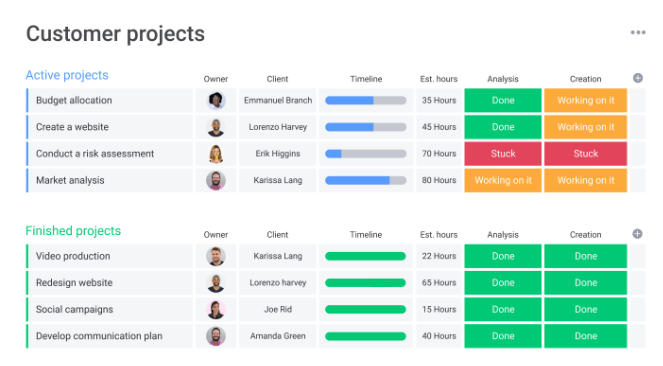
Monday.com’s colorful, spreadsheet-like boards make status visible at a glance, which is why it tends to win with teams whose leadership wants a dashboard view without digging into individual tasks. Free covers up to two seats; Basic starts at $9/seat/month (annual) or $12 monthly (3-seat minimum); Standard is $12/seat/month (annual) with more automations and integrations; Pro is $19/seat/month (annual) and adds time tracking and advanced reporting; Enterprise is custom. Worth knowing: paid plans require at least three seats, so it’s not built for true solo use.
Notion — for teams that already live in docs and wikis
If your team’s specs, meeting notes, and project trackers already live in Notion, its databases can double as a lightweight project tracker without adding a separate tool. Free covers solo use; Plus is $10/member/month (annual) or $12 monthly for small-team collaboration; Business is $20/member/month (annual) or $24 monthly and unlocks full Notion AI. It’s a genuinely good fit for teams whose real problem is scattered documentation — less so for teams that need dedicated Gantt charts or workload views.
Trello — the simplest board for straightforward workflows
Trello’s kanban-only approach is the fastest project tool to explain to a new hire — cards move from column to column, and that’s the whole mental model. Free covers unlimited cards with some usage limits; Standard is $6/user/month (annual); Premium is $12.50/user/month (annual) and adds timeline, calendar, and dashboard views. It’s the right call for teams with genuinely simple workflows, and the wrong one the moment a project needs dependencies or resource planning.
Basecamp — async-first, flat-rate simplicity
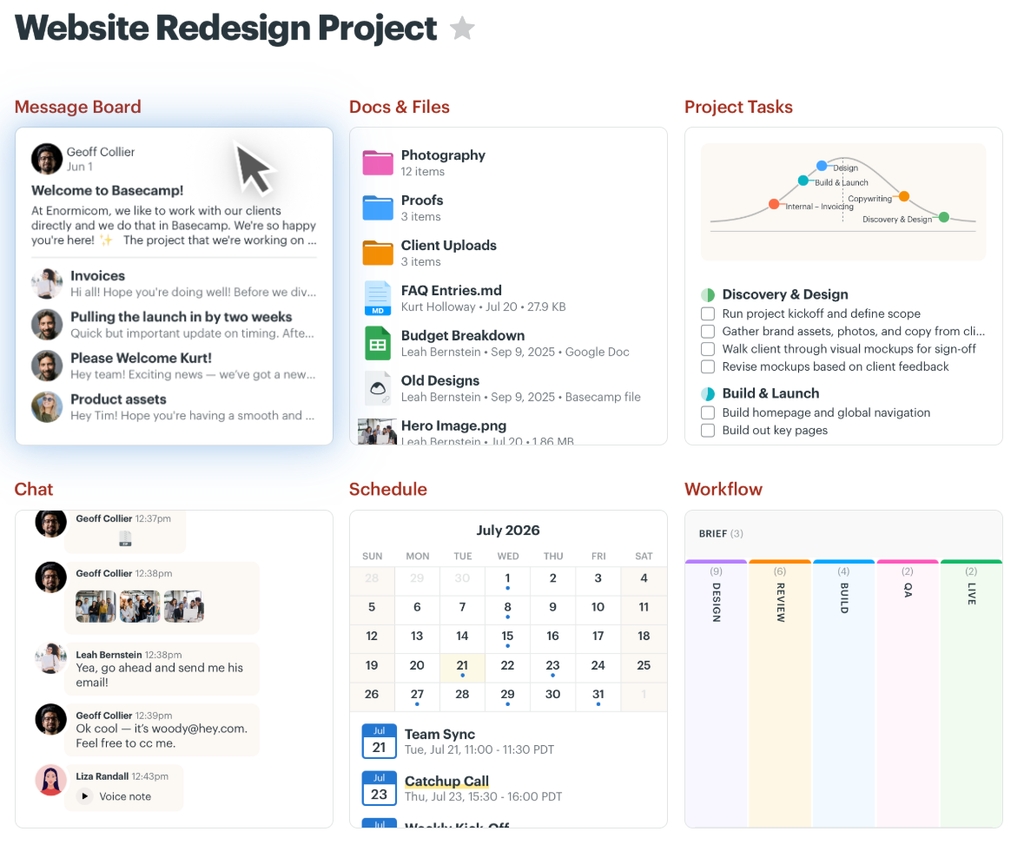
Basecamp deliberately avoids the chat-notification treadmill other tools lean into, favoring message boards, to-dos, and check-in questions built for async-first teams. Pricing is flat-rate rather than per-seat: $15/user/month, or a flat $299/month for unlimited users on the Pro Unlimited plan — a real advantage once a distributed team grows past 20 people. The tradeoff is fewer configuration options than ClickUp or Monday.com if your workflows are genuinely complex.
Pricing at a Glance
| Tool | Best For | Starting Price | Free Tier? |
|---|---|---|---|
| ClickUp | Teams that want one configurable tool for everything | Free; Unlimited $7/user/mo (annual); Business $12/user/mo (annual) | Yes |
| Asana | Fast onboarding for cross-functional teams | Free (2 users); Starter $10.99/user/mo (annual); Advanced $24.99/user/mo (annual) | Yes |
| Monday.com | Visual, dashboard-driven status tracking | Free (2 seats); Basic $9/seat/mo (annual, 3-seat min); Pro $19/seat/mo (annual) | Yes |
| Notion | Teams already living in docs/wikis | Free; Plus $10/member/mo (annual); Business $20/member/mo (annual) | Yes |
| Trello | Simple kanban workflows | Free; Standard $6/user/mo (annual); Premium $12.50/user/mo (annual) | Yes |
| Basecamp | Async-first teams that want flat-rate pricing | $15/user/mo, or $299/mo flat for unlimited users | No (trial only) |
Pricing confirmed against vendor pricing pages as of publication; PM tool pricing and seat minimums change often, so double-check current rates before you budget for a whole team.
How to Roll This Out Without Losing Momentum
The biggest risk with switching project management systems isn’t picking the wrong tool — it’s picking any tool and never getting full adoption because the rollout was rushed. A rollout that actually sticks:

- Map your current workflow on paper first — the stages a task actually moves through — before you build it in a new tool. A tool can’t fix a workflow nobody agreed on.
- Pilot with one team for two to three weeks before rolling out company-wide. Project tools fail differently than other software — the failure mode is quiet abandonment, not a broken feature.
- Migrate one active project at a time rather than everything at once. Teams that try to move every historical project on day one usually give up before finishing.
- Assign one internal owner responsible for naming conventions, templates, and answering “how do I…” questions — without one, every team member builds it differently and the system fragments within a month.
Frequently Asked Questions
Do we need a dedicated PM tool if we already use Slack and Google Docs?
Slack and Docs are fine for conversation and content, but neither one shows who owns what and by when across a whole team — that’s the specific gap a project management tool closes. Most remote teams find the switch worth it once more than two or three people depend on the same set of deliverables.
Which tool is easiest for a non-technical team to adopt?
Asana and Trello both have the shortest ramp-up time for non-technical teams — the interfaces map closely to how people already think about task lists and boards. ClickUp and Monday.com are more powerful but ask for more setup time upfront.
Can a free plan cover a small remote team long-term?
For teams under about five people with straightforward workflows, yes — ClickUp, Asana, Monday.com, Notion, and Trello all have genuinely usable free tiers. Once you need timelines, advanced automation, or workload views across a bigger team, you’ll outgrow the free tier and need to budget for paid seats.
Final Takeaway
There’s no single “best” project management system in 2026 — there’s a best system for how your specific remote team actually works. Start by naming your team’s real bottleneck (visibility, onboarding speed, workflow complexity, or cost per seat), pick one tool for it, and pilot before rolling out company-wide. We’ll be publishing hands-on reviews of ClickUp and Asana, plus a full comparison of ClickUp vs. Asana vs. Monday.com, over the next few weeks — this page will link out to each as it goes live.




Pingback: How to Set Up a Project Management System That Gets Used