Buying the right project management tool doesn’t automatically fix anything. Most teams that “already switched” are still coordinating half their work over Slack DMs six weeks later, because picking the software was never the hard part — getting a distributed team to actually update it every day is. This is the setup guide for that second half: the structure, defaults, and rollout order that make a project management system stick instead of quietly dying by week three.
This continues our Project Management for Remote Teams series — if you haven’t picked a tool yet, start there. This guide assumes you’ve already chosen (ClickUp, Asana, and Monday.com are the examples below, but the steps map onto almost any modern PM tool) and walks through getting it live.
What You’ll Build
- A single, agreed structure for spaces, projects, and task fields — not five people’s personal interpretations of one
- Default views (list, board, calendar) already configured so nobody has to build their own before they can use it
- A written “system of record” rule: what lives in the tool vs. what stays in Slack or email
- A two-week rollout plan that gets the whole team updating tasks daily without a training session nobody remembers
Time to set up: ~2-3 hours of admin work, spread over a two-week rollout · Cost: $0 to test on free plans, ~$7-13/user/month once you’re ready to commit · Skill level: no code required
Why Most Rollouts Fail Before They Start
Industry research on PM software adoption keeps landing on the same handful of causes, and none of them are “the tool was bad”: too many required fields before a task can be saved, no clear single owner per task, work tracked in the tool that doesn’t match where the work actually happens, and a launch that skips training and hopes people figure it out. The pattern shows up fast — teams typically abandon a new tool within the first week if the old workaround (a Slack thread, a shared doc) still feels easier than the new one. The fix isn’t a better tool. It’s a rollout that removes friction before it removes the workaround.
Step 1: Build the Skeleton Before You Invite Anyone
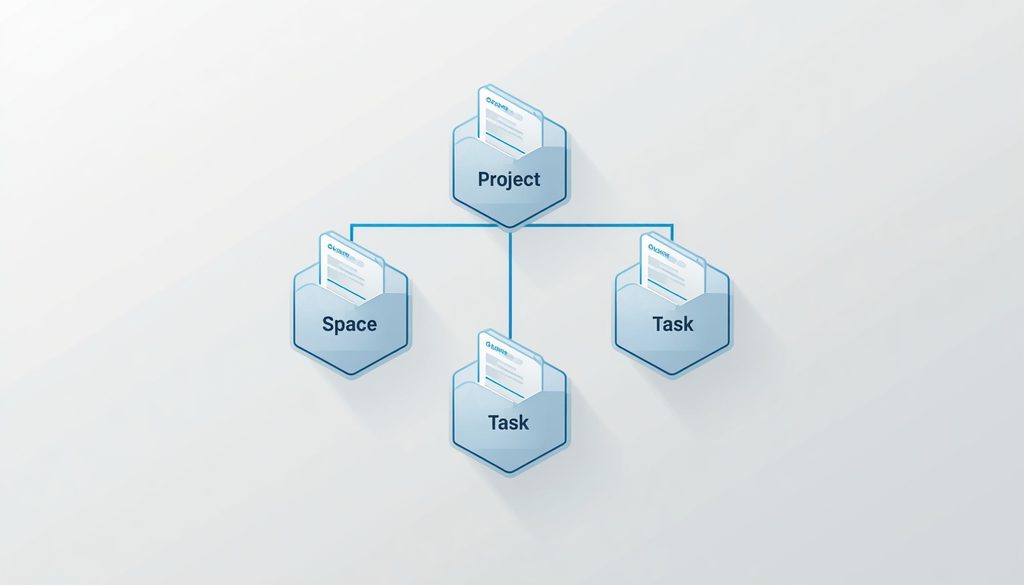
Do this alone or with one co-admin. If five people build the structure together, you get five structures stitched into one confusing mess.
- Create one space (or team) per department or client portfolio, not one per project. ClickUp Spaces, Asana Teams, and Monday.com Workspaces all map to this same idea — a durable container that outlives any single project.
- Inside each space, create projects/lists that match real work, not aspirational categories. If nobody would say “let’s check the Q3 Initiatives list” out loud in conversation, it shouldn’t exist.
- Define exactly four custom fields, no more: Owner, Due Date, Status, and Priority. Every additional required field is a reason someone skips creating the task. You can always add fields later once the habit is established.
- Set one default view per space — board (kanban) for creative/ops work people think of as “stages,” list view for anything with a lot of small recurring tasks. Don’t leave it on the tool’s out-of-the-box default; pick the one that matches how your team already talks about the work.
- Turn off notifications you don’t want by default. ClickUp, Asana, and Monday.com all ship with aggressive default email/push settings. Set the workspace-level default to digest or off before inviting anyone — “I muted it because it was too noisy” is how tools die in week one.
Step 2: Migrate Only What’s Still Active
Do not import your entire backlog from the old tool, spreadsheet, or Trello board. Migrating everything — including the stale, half-finished, three-months-abandoned tasks — is the single fastest way to make a fresh system feel exactly as cluttered as the one it replaced.
- Export only tasks with an owner and a due date in the next 30 days. Everything else either gets archived in the old system or added to a single “Backlog” list nobody has to look at daily.
- Use the tool’s native importer where possible. ClickUp and Asana both have direct importers for Trello, Asana, Monday.com, and CSV; Monday.com’s importer covers Trello, Asana, Excel, and Jira. A native import preserves owners and dates — a copy-pasted list doesn’t.
- Re-assign every imported task by hand. Imports frequently drop or mis-map the assignee field. An unowned task in a new system gets ignored twice as fast as one in an old, familiar system.
Step 3: Write the One-Page “System of Record” Rule
The most common reason a PM tool quietly dies is that half the team keeps deciding things in Slack and never writes it back to the task. Fix this with one short, explicit rule — not a 10-page policy — pinned in your team’s main Slack channel and linked from the tool’s home page:
- If it changes a deadline, an owner, or a deliverable, it goes in the task — not just Slack. Slack is for “hey, quick question,” not “we decided to push this to Friday.”
- Every task has exactly one owner. “Assigned to the team” is not an owner. If two people need to act, split it into two tasks.
- Status updates happen in the tool, on a schedule — not on request. Replace the “any update on this?” DM with an expectation: comment or move the card by end of day Friday, no exceptions.
- Comments live on the task, decisions live in the description. A task’s description should always reflect the current plan, not the history of how you got there — that’s what the comment thread is for.
Step 4: Roll Out in Two Weeks, Not One Meeting
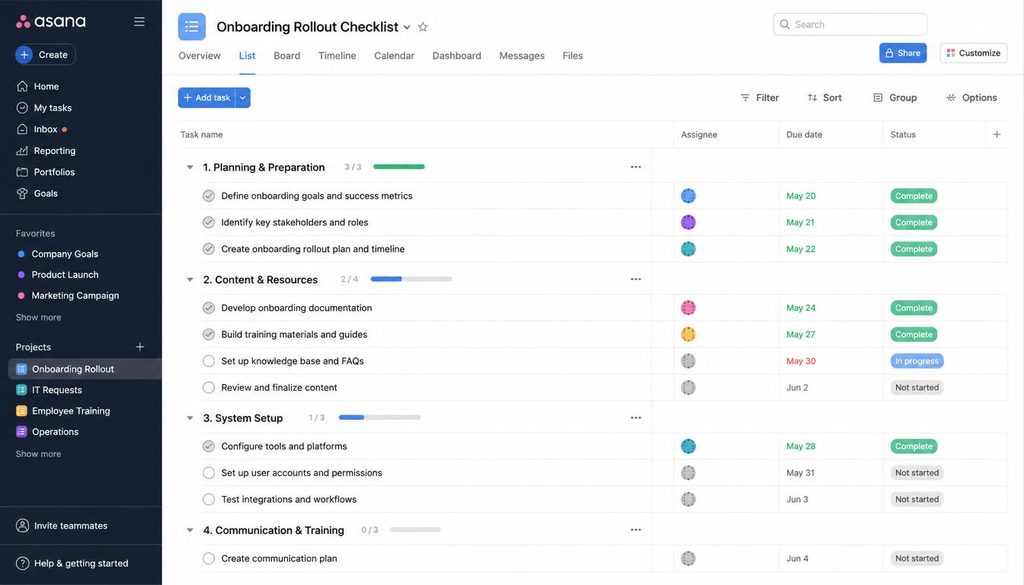
A single “here’s the new tool” announcement, however good the slide deck, does not change behavior. Give it two weeks with a light structure:
| When | What happens | Who’s responsible |
|---|---|---|
| Day 1 | 15-minute live walkthrough of the skeleton (spaces, default view, the four fields) — recorded for anyone async | Admin/rollout owner |
| Days 2-5 | Everyone moves only their own active tasks into the tool; old system goes read-only for new tasks | Whole team |
| Week 1, Friday | 15-minute async check: post one thing that was confusing, one that worked, in a shared thread | Whole team |
| Week 2 | Turn off the old tool completely (archive, don’t delete, in case something was missed) | Admin/rollout owner |
| Week 2, Friday | Quick retro: are people updating tasks without being asked? If not, find the friction point and remove it — don’t add a rule | Whole team |
The pattern to watch for is silence, not complaints. If people stop asking questions about the new tool in week two, that usually means they’ve quietly gone back to the old workaround — not that everything is fine. Check task activity logs, not vibes.
Step 5: Replace Status Meetings With Async Updates
The real payoff of a working PM system for a remote team is deleting recurring status meetings, not just having a prettier task list. Once the tool is live:
- Set a written daily or twice-weekly update cadence (what I finished, what’s next, what’s blocked) posted as a comment on the relevant task or project — not a separate document.
- Cancel one recurring status meeting and replace it with those async updates for two weeks. If nothing breaks, cancel it for good.
- Reserve remaining live meetings for decisions that need real-time back-and-forth — not for reading status out loud that’s already written down.

Common Mistakes to Avoid
- Copying your old tool’s structure exactly. A messy system stays messy just because it moved to nicer software.
- Requiring too many fields before a task can be saved. Every extra required field is a task that never gets created.
- Running the old and new systems in parallel indefinitely. Pick a hard cutover date in week two and stick to it — “just in case” parallel systems never fully retire.
- Skipping the async-update habit. A tool full of tasks but no comments just becomes a fancier to-do list, not a replacement for status meetings.

FAQ
Can we set this up on free plans first?
Yes, for a pilot team. ClickUp’s Free Forever plan supports unlimited members and tasks (capped at 60MB storage); Asana’s free plan supports up to 10 users; Monday.com’s free plan caps at two seats, which is really only enough to test the interface solo. For a real team pilot, ClickUp’s free tier goes furthest before you need to upgrade.
How long should the skeleton-building step really take?
For a team under 15 people, budget half a day. Resist the urge to perfect it — a workable structure you can adjust in week two beats a “perfect” structure that took a month to design and that nobody has seen yet.
What if half the team still updates status in Slack after two weeks?
That’s a friction problem, not a discipline problem. Check whether the task update flow takes more clicks than a Slack message — if so, simplify the fields or the view before adding a rule about compliance.
Do we need a dedicated project manager to run this rollout?
No — any team lead or ops-minded person can run the two-week rollout in this guide. A dedicated PM helps once you’re managing multiple concurrent projects with dependencies across teams, which is a different problem than getting a tool adopted.
Related reading: if you haven’t picked a tool yet, start with Project Management for Remote Teams: How to Choose the Right System. Reviews of ClickUp and Asana, plus a full ClickUp vs. Asana vs. Monday.com comparison, are coming later in this series.
The Bottom Line
The tool was never the hard part. Build a lean skeleton before anyone else logs in, migrate only active work, write one page of ground rules about what lives where, roll it out over two weeks instead of one meeting, and use it to delete a status meeting. Do those five things and the system gets used — skip them and the nicest software in the world quietly becomes shelfware by week three.