Most remote teams don’t lose 10 hours a week to one big broken process — they lose it in dozens of small ones: copying a lead from a form into a CRM, re-typing the same Slack update into three tools, manually renaming files after every client call. None of that requires a person’s judgment, and all of it can run itself. Workflow automation tools exist to close exactly that gap, connecting the apps your team already uses so information moves between them without anyone clicking “copy” and “paste.”
This guide breaks down what these tools actually do differently, what to check before you pick one, and how the category’s leading names — Zapier, Make, Microsoft Power Automate, and n8n — compare in 2026. This is the first post in our Workflow Automation series. Over the next few weeks we’ll publish hands-on reviews of individual tools and a head-to-head comparison — bookmark this page as your starting point and we’ll link everything back here as it goes live.
Why Automation Matters More for Remote Teams

In an office, a manual handoff is annoying but survivable — someone can walk over and ask if the invoice went out. On a distributed team spread across time zones, that same gap turns into a half-day delay while everyone waits for the one person who does that step manually to come online. Automation closes that gap in three concrete ways:
- Work keeps moving without a human in the loop. A lead that comes in at 2am your client’s time gets logged, tagged, and routed the moment it arrives, not whenever someone signs on eight hours later.
- Process knowledge stops living in one person’s habits. When “how we handle a new client” is a documented, running workflow instead of a checklist in someone’s head, the process survives vacations, sick days, and turnover.
- Tool sprawl stops being a tax on everyone’s attention. Remote teams tend to accumulate more point tools, not fewer, because there’s no shared office instance to standardize on. Automation platforms are the glue that makes a dozen best-of-breed tools behave like one connected system.
What to Look for Before You Pick One
Not every tool in this category solves the same problem. Before you commit to one, weigh it against these five criteria:
- Task-based vs. operation-based pricing: Some tools bill per “task” or “run” of a whole workflow (Zapier); others bill per individual step or “operation” inside a workflow (Make). A five-step Zap and a five-step Make scenario are not priced the same way — always price out your actual volume, not the headline number.
- No-code vs. willing-to-code: Zapier and Make are built for people who’ve never written a line of code. n8n and Power Automate reward technical users with more flexibility (custom code nodes, on-prem/self-hosted options) but have a steeper learning curve.
- Where your team already lives: If you’re already deep in Microsoft 365 and SharePoint, Power Automate’s native integration beats bolting on a third-party tool. If your stack is mostly SaaS apps like Slack, Notion, and Google Workspace, Zapier or Make will connect faster.
- Self-hosting and data control: n8n is the only major option here with a genuinely free, self-hosted community edition — worth a look if a team’s data-residency policy or budget rules out sending data through a third-party cloud.
- How it fails: Every automation breaks eventually — an API changes, a field gets renamed. Check how visible error alerts are and how easy the tool makes it to see exactly where a run failed, because a silent failure at 2am can be worse than doing the task manually.
The Tools Worth Knowing in 2026
Zapier — the easiest on-ramp, for a price
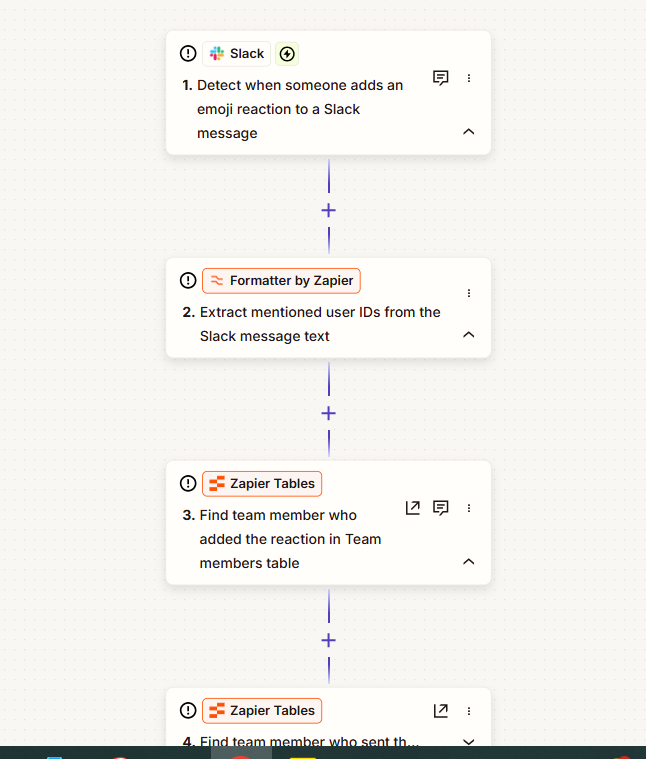
Zapier remains the default answer for “how do I connect these two apps” for a reason: 8,000+ app integrations, a genuinely simple builder, and enough templates that most common workflows are a copy-paste away. The tradeoff is cost at scale — Zapier bills per completed task (each single action in a multi-step Zap counts as a task), and that adds up fast once a workflow runs hundreds of times a day. The free plan caps out at 100 tasks a month and single-step Zaps only, so it’s really a trial, not a working tier. Paid plans start at the Professional tier (from roughly $19.99/mo billed annually for 750 tasks), with Team plans (from around $69/mo) adding shared workspaces and 25+ user seats. Best for teams that want the fastest path from “we have a manual task” to “it’s automated,” and don’t mind paying a premium for that speed.
Make (formerly Integromat) — more power, more visual complexity
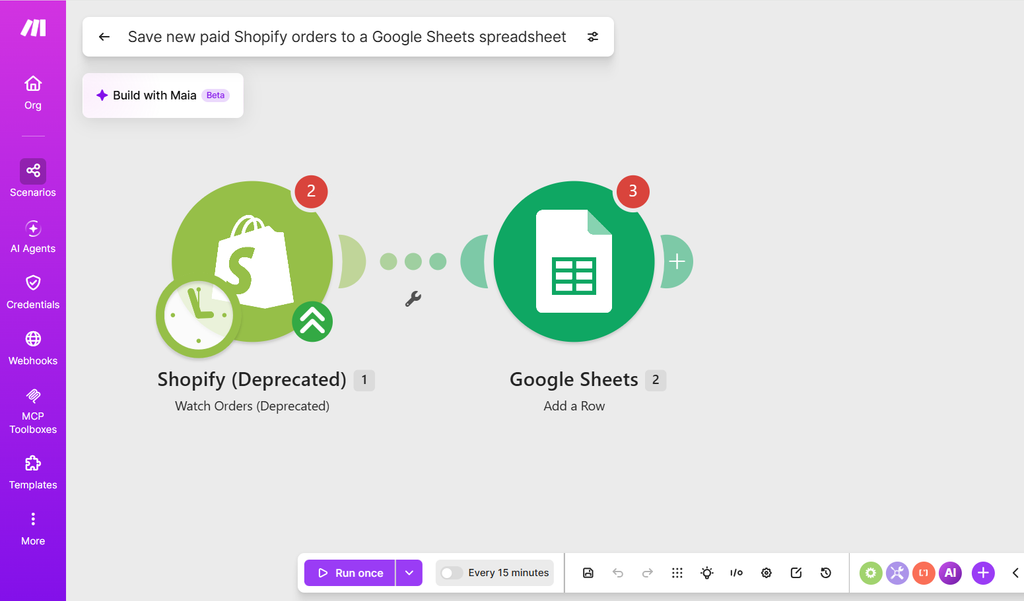
Make trades Zapier’s simplicity for a visual, flowchart-style canvas that can branch, loop, and run multiple paths in parallel — genuinely useful once a workflow gets more complex than “when X happens, do Y.” Pricing is built around “operations” (each individual step execution) rather than whole-task runs, which tends to work out cheaper than Zapier for complex, high-volume workflows, though it takes more setup time to learn the canvas. Make’s free plan includes 1,000 operations a month across two active scenarios; paid tiers start around $9/mo (Core, 10,000 ops annual) and scale through Pro (~$16/mo) and Teams (~$29/mo), with custom Enterprise pricing above that. Best for teams that have outgrown simple linear automations and want more control without moving to a fully code-based tool.
Microsoft Power Automate — the native choice for Microsoft 365 shops
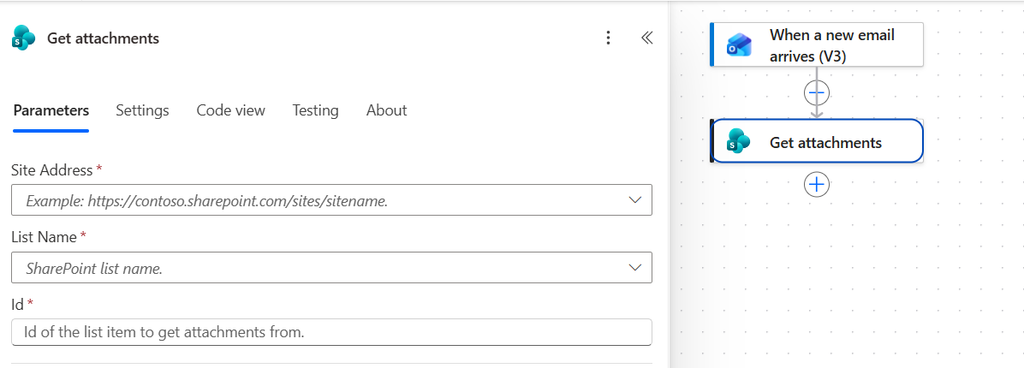
If your team already runs on Microsoft 365, SharePoint, and Teams, Power Automate is baked into the ecosystem you’re already paying for, with deep native access to those apps that third-party tools have to approximate through APIs. It covers both simple cloud-to-cloud automations and desktop-level “robotic process automation” (RPA) that can operate legacy desktop apps with no API at all. Power Automate Premium runs about $15/user/month (paid yearly) for cloud flows and attended desktop automation; unattended RPA “bots” that run without a person present cost extra — Power Automate Process is about $150/bot/month, with a Hosted Process tier (~$215/bot/month) for teams that don’t want to manage the hosting infrastructure themselves. Best for teams already inside the Microsoft ecosystem, weaker fit for teams built entirely on non-Microsoft SaaS tools.
n8n — open-source, self-hostable, and code-friendly
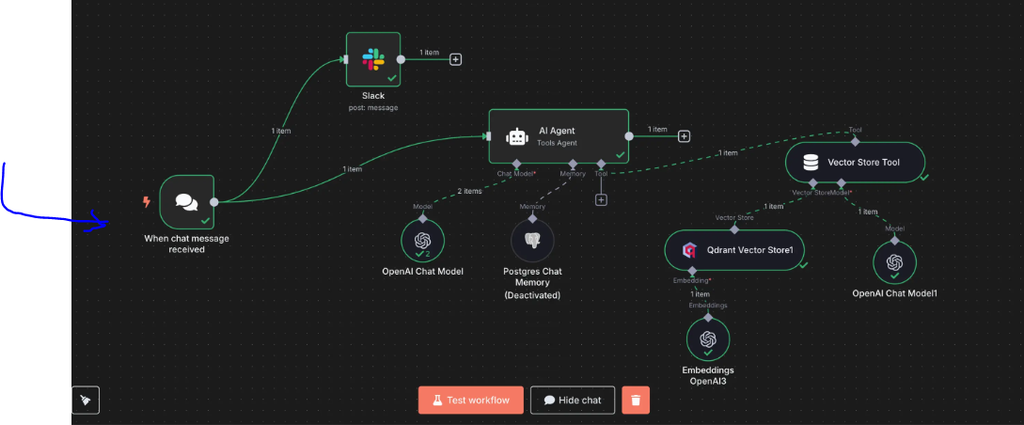
n8n is the option built for teams with at least one technically comfortable person on staff. Its free, self-hosted Community edition has no execution limits at all — you just need somewhere to run it — and its workflow builder lets you drop into actual JavaScript or Python inside any step when a no-code node can’t do what you need. For teams that don’t want to self-host, n8n Cloud starts around €20/month (roughly $22, billed annually) for a Starter plan with 2,500 executions, scaling to Pro (~€50/mo) and a self-hosted Business tier with support (~€667/mo). Best for technical teams, agencies building automations for clients, or anyone who wants to avoid vendor lock-in and per-task billing entirely by self-hosting.
| Tool | Best For | Starting Price | Free Tier? |
|---|---|---|---|
| Zapier | Fastest setup, largest app library | Professional from ~$19.99/mo (annual, 750 tasks); Team from ~$69/mo | Yes (100 tasks/mo, single-step only) |
| Make | Complex, branching, high-volume workflows | Core from ~$9/mo (annual, 10,000 ops) | Yes (1,000 ops/mo) |
| Power Automate | Microsoft 365 / SharePoint shops, desktop RPA | Premium ~$15/user/mo (yearly); unattended bots from ~$150/bot/mo | Limited trial only |
| n8n | Technical teams, self-hosting, avoiding per-task fees | Free self-hosted (Community); Cloud Starter from ~€20/mo | Yes (self-hosted, unlimited executions) |
How to Roll This Out Without Breaking Something Important
Automation earns trust slowly and loses it instantly — one workflow that silently double-sends an invoice is enough to make a team distrust every automation after it. A few rules keep the rollout smooth:
- Start with one painful, low-risk task. Pick something repetitive and annoying but not mission-critical — copying form submissions into a spreadsheet, not sending client invoices — so early mistakes cost minutes, not money.
- Build in a visible failure alert from day one. Every platform in this guide supports error notifications to Slack or email — turn them on before you turn on the workflow, not after the first silent failure.
- Document what each workflow does and why, outside the tool itself. A workflow that lives only inside Zapier’s UI is invisible to the next person who needs to debug or extend it. A one-paragraph note in your team wiki saves hours later.
- Name an owner for every automation. “Automated” doesn’t mean “unowned” — someone on the team should know a given workflow exists and be the first call when it breaks.
Frequently Asked Questions
Do I need a developer to use any of these tools?
No — Zapier, Make, and Power Automate’s cloud flows are all designed for non-technical users and use visual, drag-and-drop builders. n8n is friendlier to technical users but still has a no-code visual canvas; you only need to write code if a built-in node can’t do what you want.
How much time can automation actually save a small remote team?
It depends entirely on how much manual, repetitive app-switching your team currently does, but teams that automate lead routing, status updates, file organization, and reporting commonly report saving one to two hours per person per week — the 10+ hours a week this post’s title references is realistic for a team of 5-8 people once several workflows are running.
What happens if an automation breaks?
Every platform covered here can send an alert (Slack, email, or in-app) the moment a run fails, and most keep a log of every execution so you can see exactly which step failed and why. The risk isn’t the tool failing — it’s failing silently because nobody turned alerts on.
Final Takeaway
There’s no single “best” workflow automation tool in 2026 — there’s a best tool for how your remote team already works. Zapier wins on speed and app coverage, Make wins on power for complex workflows, Power Automate wins if you’re already in Microsoft 365, and n8n wins if you want to self-host and avoid per-task billing entirely. Start with one workflow, name an owner, and turn on failure alerts before you turn on anything else. We’ll be publishing hands-on reviews of Zapier and Make, plus a full comparison of Zapier vs. Make vs. Power Automate, over the next few weeks — this page will link out to each as it goes live.