Every ops manager has the same quiet suspicion: a big chunk of the team’s week is going to work that doesn’t need a human doing it. Nobody can point to exactly what, though, because “we’re just busy” is what it feels like from the inside. The fix isn’t guessing which task to automate first and hoping — it’s running a short, structured audit that turns a vague feeling of busyness into a ranked list, then working that list in order.
This playbook walks through that audit end to end: how to log what your team actually does for one week, how to score each task so the highest-value automation surfaces on its own, and how to roll the first few automations out without anyone losing trust in them. It builds directly on the tools covered in Workflow Automation 101: How Remote Teams Save 10+ Hours a Week and the hands-on client onboarding Zap — this is the process that tells you which workflow to build next.
The Framework
- Log every repetitive task the team does for one full week, no filtering as you go
- Score each logged task on frequency, time cost, and error risk
- Automate the highest-scoring, lowest-risk task first, not the most impressive one
- Document what every automation does and who owns it, outside the tool itself
- Re-run a lightweight version of the audit every quarter and prune what’s stopped earning its keep
Time to set up: ~1 week of light logging, ~2–3 hours to score and prioritize · Cost: $0 using a shared spreadsheet, ~$20–70/month if you add a documentation or automation tool · Skill level: no code required
Step 1: Run a One-Week Repetitive Task Audit
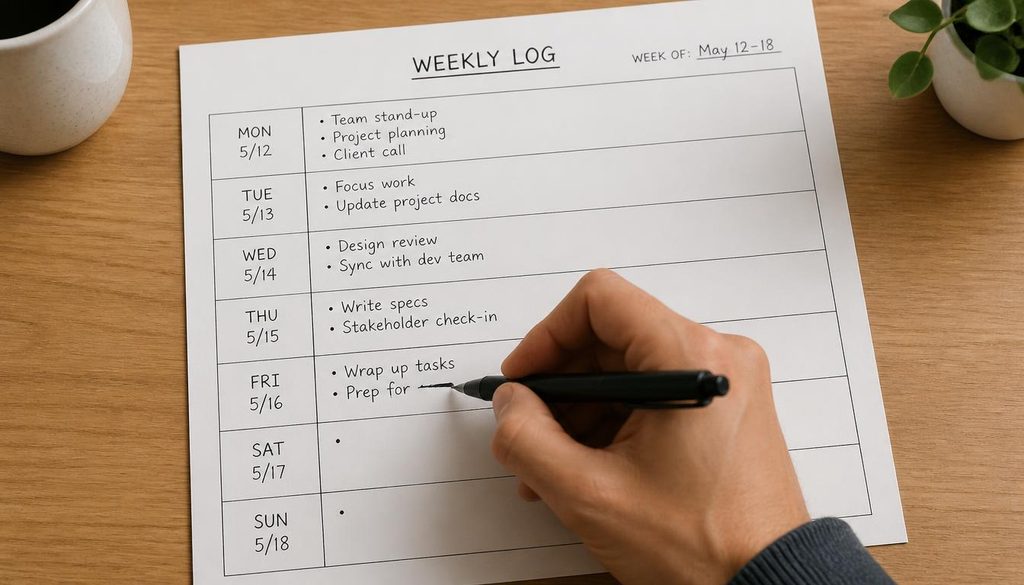
You can’t prioritize what you haven’t written down, and most ops managers underestimate how much manual, repeatable work is happening below their line of sight. Before touching any automation tool, spend one week logging it. Brief the team in five minutes: for one week, every time someone does something they’ve clearly done before — copying data between two tools, renaming files the same way, sending the same status update, chasing the same approval — they add one line to a shared log.
Keep the log itself dead simple so people actually fill it in: a shared spreadsheet with columns for task, who did it, how long it took, which tools were involved, and how often it happens (daily, weekly, monthly). Emphasize honesty over polish — the goal is an accurate picture of the busywork, not a flattering one. One week of real logging beats a “brainstorm” meeting where everyone lists the tasks they remember, because the tasks that hurt the most are usually the ones nobody thinks to mention.
A few things worth logging even though they feel too small to matter: re-typing the same update into three tools, manually renaming files after a call, chasing a Slack approval that always says yes, and copying a lead from a form into a CRM. None of these need a person’s judgment, and all of them show up on the audit log as short but frequent — which, as the scoring in Step 2 shows, is exactly the profile of a task worth automating first.
Step 2: Score and Prioritize What You Found
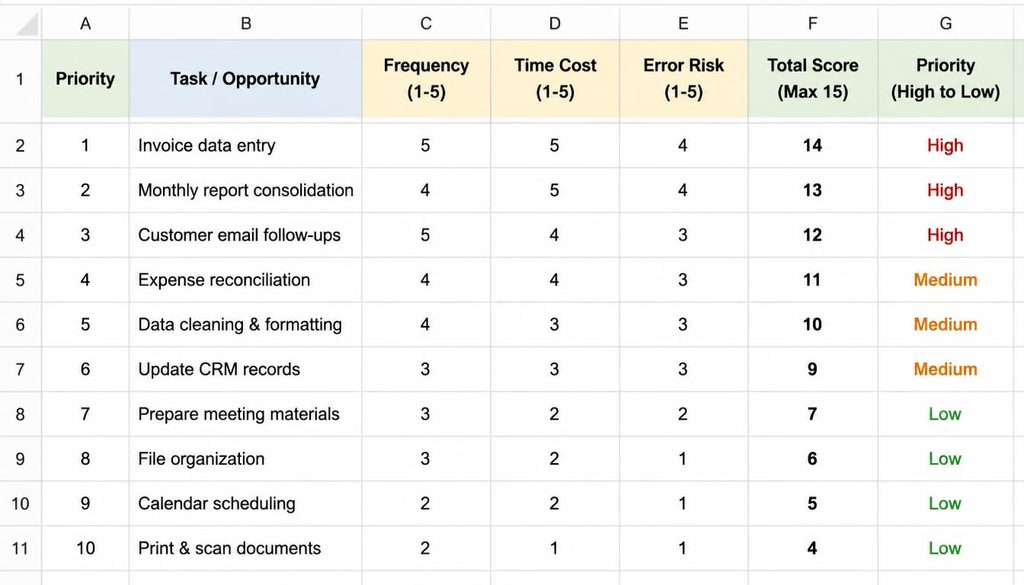
At the end of the week you’ll have a messy list of 20–50 tasks. Turn it into a ranked list by scoring each one on three simple criteria, 1–5 each:
| Criteria | 1 (low) | 5 (high) |
|---|---|---|
| Frequency | Happens rarely (monthly or less) | Happens daily or multiple times a day |
| Time cost | Under 5 minutes per instance | 30+ minutes per instance |
| Error risk | A mistake here is annoying but harmless | A mistake here delays a client or costs money |
Multiply the three scores together for a rough priority number, then sort the list from highest to lowest. This is a five-minute exercise in a spreadsheet, but it does something a gut-feeling list can’t: it consistently surfaces the “boring but constant” task over the “occasional but painful” one. A task that takes 3 minutes but happens 40 times a week almost always outranks a task that takes an hour but happens twice a month — and that’s usually the opposite of what people remember complaining about most.
Add one more filter before you commit to the top of the list: does this task require real human judgment? If the answer is “yes, sometimes” — approving a discretionary refund, deciding whether a lead is a good fit — flag it as “assist, don’t replace.” Automation can still draft the recommendation or pre-fill the form; a person should still make the call. Save full end-to-end automation for tasks where the answer is a clean “no.”
Step 3: Automate the Top of the List First
Resist the urge to start with the most technically interesting automation on the list — start with the highest score. The goal in this first pass is a quick, visible win that builds trust in the process, not a showcase project. Most of the top-ranked tasks from a repetitive-task audit fall into one of three buckets, each with its own best tool:
| Task type | Best-fit tool | Approx. cost (2026) |
|---|---|---|
| Moving data between two SaaS tools (form → CRM, Slack → sheet) | Zapier or Make | Zapier from ~$19.99/mo (annual); Make from ~$9/mo (annual) |
| Repetitive multi-step process inside Microsoft 365 | Power Automate | ~$15/user/mo (yearly) for cloud flows |
| Capturing and standardizing a manual process as a written SOP | Scribe or Tango | Free browser-capture tier; paid team plans from ~$13–15/seat/mo (annual) |
Not every top-ranked task needs a workflow-automation platform — some just need to stop living in one person’s head. If the audit surfaces a task that’s repetitive but genuinely needs a person to execute it (a client kickoff call, a manual QA check), the highest-value move is turning it into a documented, step-by-step SOP with a tool like Scribe or Tango, which auto-captures screenshots as someone performs the task and turns it into a shareable guide in minutes. That alone removes the “only Maria knows how to do this” risk without automating a single click.
For tasks that genuinely can run without a person, build the automation using the criteria from Workflow Automation 101: check whether the tool bills per task or per operation before you commit, confirm it connects natively to the apps your top task touches, and see the step-by-step Zapier build for what a real first automation looks like end to end.

Step 4: Roll It Out Without Breaking Trust
The fastest way to kill an automation initiative is to have the first one fail silently. A single instance of a workflow double-sending an email or dropping a client’s data is usually enough for the team to quietly go back to doing it by hand “just to be safe.” A few rules keep that from happening:
- Run it in parallel for one cycle before fully switching over. Let the automation run alongside the manual process once, and compare the outputs before you retire the manual version.
- Turn on failure alerts before you turn on the workflow. Every major automation platform can ping Slack or email the moment a run fails — set that up on day one, not after the first silent miss.
- Name an owner for every automation. “Automated” doesn’t mean “unowned” — someone on the team should know it exists and be the first call when something looks off.
- Write down what it does and why, outside the tool. A one-paragraph note in your team wiki or a Scribe guide saves whoever debugs it next from having to reverse-engineer the workflow from scratch.
- Announce it to the team, not just the person who built it. People trust automation faster when they know it’s there and what to expect from it, rather than noticing a task quietly stopped needing them.

Step 5: Review, Prune, and Keep the System Honest
An automation audit isn’t a one-time project — tools change, teams change, and workflows that made sense six months ago quietly stop earning their keep. Put a recurring 30-minute slot on the calendar once a quarter to walk the list of live automations and ask three questions of each: is it still running correctly, is it still needed, and has anything changed upstream (a renamed field, a new tool) that could break it quietly. Kill anything that’s outlived its purpose — a dead automation nobody remembers building is worse than no automation at all, because it can fail without anyone noticing.
This is also the moment to run a lighter version of Step 1 again: ask the team what new manual busywork has crept in since the last audit. Team composition, tools, and client volume all change, and the repetitive-task list six months from now won’t look like the one you started with. Treat the audit as a recurring habit, not a project with an end date.
Common Mistakes to Avoid
- Skipping the log and going straight to a tool. Without the week of logging, teams tend to automate the task that annoyed someone most recently, not the one costing the most time overall.
- Automating a task that still needs judgment. If a “yes, sometimes” answer to the judgment question got skipped, the automation ends up making calls a person should be making — and it’s usually discovered only after something goes wrong.
- Building five automations at once. Rolling out one workflow at a time, in priority order, means a failure is easy to isolate and trust builds with each success. Five at once means a failure is hard to trace back to its cause.
- Never revisiting the list. An audit done once and never repeated slowly goes stale as new busywork creeps back in behind it.
- Leaving automations undocumented and unowned. The workflow that lives only in one person’s head or one person’s tool login is the one that breaks hardest when that person is out sick or leaves.
FAQ
How long should the initial task audit take?
One week of logging is enough to get a representative picture for most small teams, plus about 2–3 hours to score and prioritize the results afterward. Longer than a week risks people losing the habit of logging; shorter risks missing tasks that only happen a couple of times a week.
What if the team resists logging their own busywork?
Frame it explicitly as “finding what to take off your plate,” not as a productivity audit on individuals — the log is about tasks, not people. Keeping it anonymous by task rather than by name, and sharing the eventual automation wins back with the team, usually removes most of the resistance.
Do I need a dedicated automation tool to get started?
No. A shared spreadsheet covers the audit and scoring steps entirely for free. You only need to pay for a tool once you’ve identified the specific task worth automating — and even then, Zapier, Make, and Scribe all have usable free tiers for testing the very first workflow before committing to a paid plan.
How do I know if an automation is actually working?
Check three things at each quarterly review: the run history shows it’s still executing without errors, the output still matches what the manual process used to produce, and nobody on the team has quietly reverted to doing the task by hand because they stopped trusting it.
Related reading: for a full breakdown of Zapier, Make, Power Automate, and n8n, see Workflow Automation 101: How Remote Teams Save 10+ Hours a Week.
The Bottom Line
Automating the right task first isn’t a matter of taste — it’s a matter of measurement. Log a week of real repetitive work, score it on frequency, time cost, and error risk, and automate the highest-ranked, lowest-risk item before anything more ambitious. Roll each automation out in parallel with the manual process, give it an owner, and write down what it does. Then put a recurring quarterly review on the calendar so the system stays honest as your tools and team change. Do that consistently and “we’re just busy” turns into a short, specific list you can actually work through.